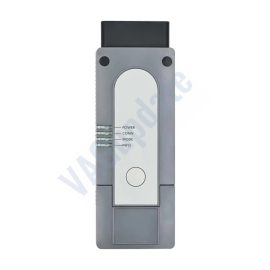
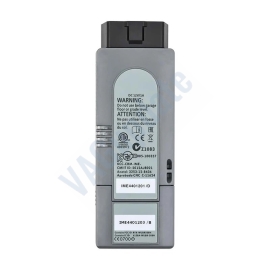
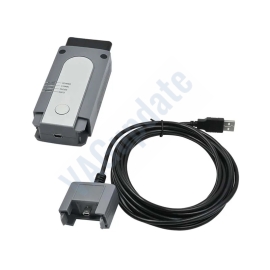
VAS6154A Vehicle Communication Interface (VCI)
Product Description
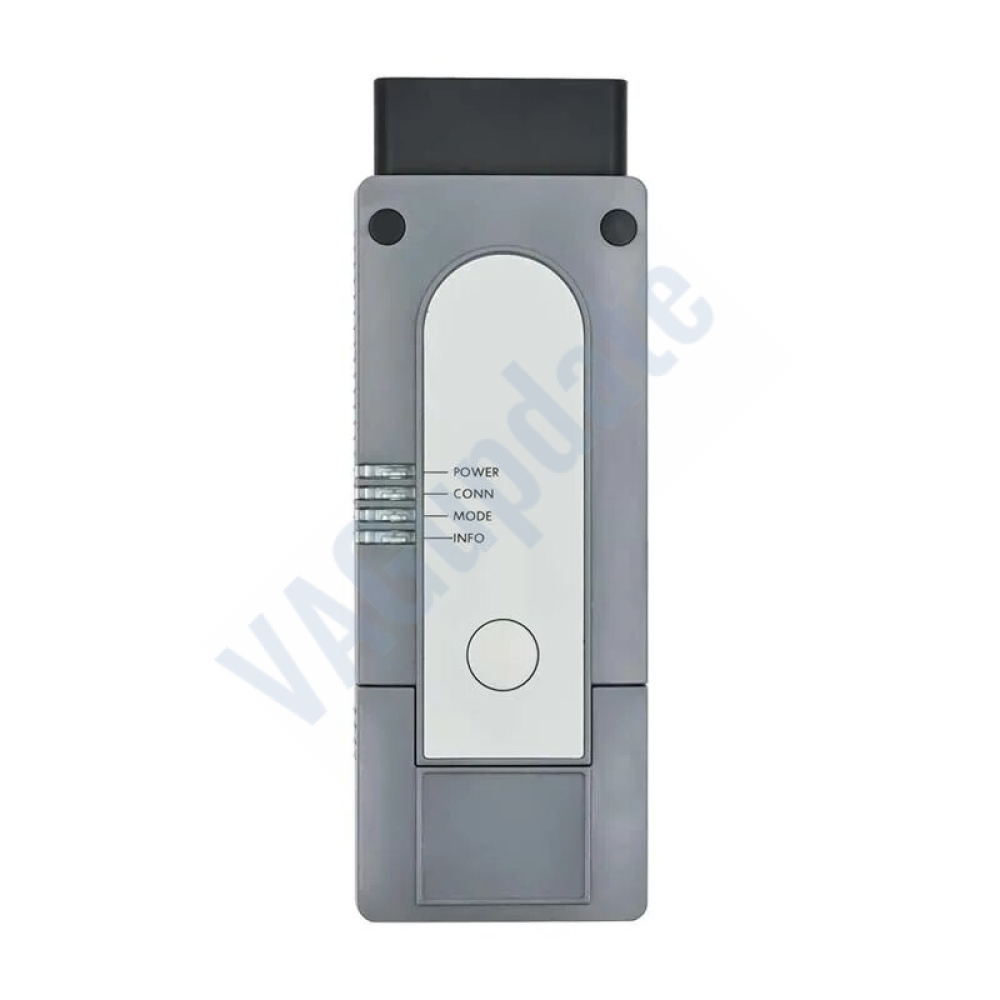
VAS 6154A Vehicle Communication Interface (VCI)
Professional Diagnostic Solution for VAG Group
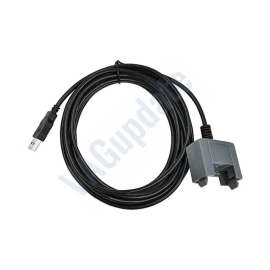
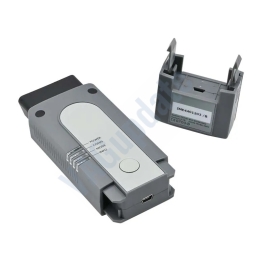
The VAS 6154A facilitates data transfer from the interface in the vehicle to the diagnosis equipment. If a wireless connection is not possible or permissible, the USB module is used, which guarantees reliable wired data transmission to the diagnosis unit.
Software & Compatibility
It works with ODIS Service and ODIS Engineering softwares. (Softwares are sent in USB flash memory without installation support).
Need Installation Support? If you need installation support and need to download data, you may order your license here: VAGUpdate ODIS License
Infrastructure Mode
Several network-capable devices can be connected together (network subscribers) for flexible workshop integration.
Point-to-Point Connection
VAS 6154 creates a radio network (Access Point), establishing a direct connection between the diagnosis unit and the interface.
Design and Features
- Plug & Play: Works with original drivers. No need to install any third party driver or software.
- Configuration: VAS 6154 is configured using the web-based user interface.
- Radio Permissions: Permission to use the radio network has been granted for: A, AUS, B, BIH, BR, CDN, CH, CY, CZ, D, DK, E, EST, F, FIN, GB, GR, H, HK, I, IL, IND, IRL, IS, J, L, LT, LV, M, MEX, N, NL, NZ, P, PL, RA, RC, ROK, RUS, S, SGP, SK, TR, UA, UAE, USA, ZA.
Technical Data
| Dimensions / Weight | Approx. 136 x 48 x 25 mm / 150g |
| Power Supply | 8-18V via vehicle connector (Output approx. 5W) |
| Temperature Range | Storage: -20°C to +85°C | Operation: -20°C to +40°C |
| PC Interface (Wired) | USB 2.0 High Speed (480 Mbit/s) or Fast Ethernet (100Mbit/s) |
| PC Interface (Wireless) | WLAN 802.11 ab/b/g/n 2T2R 300 Mbit/s (Client & AP Modes) |
Items Supplied
- Diagnosis Interface VAS 6154 (Complete Unit)
- USB Cable VAS 6154/3
- Abridged Instructions (D, GB, F, E)
Replacement Parts
- Interface Module: VAS 6154/1 (ASE 405 432 00 000)
- USB Module: VAS 6154/4 (ASE 405 435 00 000)
Part Number: ASE 405 431 00 000 — Best quality genuine item without base station and case.
VAS Diagnostic Tools
We send ODIS software with it but do not provide installation support unless you purchase ODIS Service software on our website.
Additionally you may purchase ODIS Engineering for remote installation support.
Hardwares
We send ODIS software with it but do not provide installation support unless you purchase ODIS Service software on our website.
Additionally you may purchase ODIS Engineering for remote installation support.
-
100%
-
0%
-
0%
-
0%
-
0%
Reviews Over VAS6154A Vehicle Communication Interface (VCI)
Total Reviews (1)
click here write review to add review for this product.
Report this review.
Related Products
Firmware
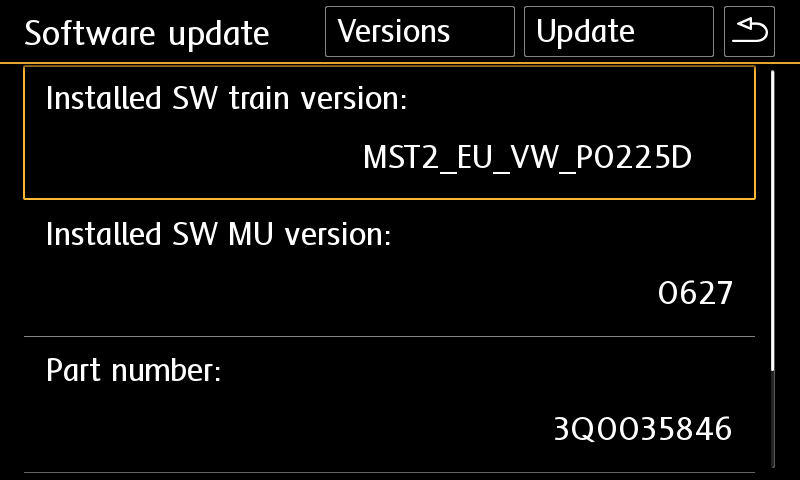
Check Installed SW Train Version:
MST2_EU_VW: Delphi (MIB2 Std)
MST2_EU_VW_PQ: Technisat/Preh (MIB2 Std)
MST2_EU_VW_ZR: Technisat/Preh (MIB2 Std)
MHI2_ER_VWG11: Harman (MIB2 High)
MHI2_ER_VWG13: Harman (MIB2.5 High)
MHI3: MIB3 Alpine
MOI3: MIB3 LG or Preh
MENT: MIB2 Entry
MH2p: pre MIB3
MHI2Q: MIB2 High
MHIG: MIB1 High
MHS2: MIB2 Delphi
MPR3: MIB3
MS2P: MIB2 Std
MSTD: MIB1 Std
MEN2: MIB2
MEN3: MIB3
To find your Installed SW Train Version,
For Audi MIB3:
Tap and hold top right corner of your screen with two fingers to go to red engineering menu, navigate to version information menu there.
For others use the shortcuts on keyboard as described here: https://vagupdate.com/blog/key-combinations-and-shortcuts-to-check-firmware-version
For VW MIB2 Press and hold menu button. Select "software update". You will see a screen below:

Yes you can do it on yourself. It is easy process.
Requirements:
- Class 10 Exfat formatted empty SD card or USB Flash Memory. (We recommend SD card for MIB2 devices. Type-C USB flash memory is required for updating MIB3 devices)
- A computer to download and extract files into SD card or USB flash memory.
- Enough charged car battery. (Installation takes 20-40 minutes depending on your SD card's or USB flash memory's read speed)
- Manufacturer does not recommend running engine during update process but if it is certain that your car's battery will get empty, you may run engine during update process. (less risky)
- Winrar Software: https://www.rarlab.com/download.htm
Installation:
- Download firmware and extract it to desktop of your computer using winrar app.
- Copy all contents in that folder into SD card's or USB flash memory's root folder.
If it is MIB2, metainfo2.txt and other folders must be in root directory, not in a folder or archive. If it is MIB3 data and meta folders must be in root directory) - Insert SD card into infotainment system's SD1 slot or USB flash memory to car's USB port. (Do not use "only charge" ports)
- For MIB2 devices, press and hold menu button. Select system update.
For Audi MIB3 tap and hold top right corner of screen with two fingers.
For MIB3 and other devices use shortcut shown here: https://vagupdate.com/blog/key-combinations-and-shortcuts-to-check-firmware-version - Go to system update menu, tap on start, show data source (usb or sd card) and update will be started.
- Once completed it will ask you to connect diagnose device. Just tap on cancel button. System will be restarted and ready to use with the new firmware.
If you get any error or problem please let us know for assistance.
Ask us on Live Chat or send us a message here. You need to provide "Installed SW Train Version" and "Installed SW MU Version" informations to us.
To find it, use this tutorial: https://vagupdate.com/blog/key-combinations-and-shortcuts-to-check-firmware-version
You will see it at first row as you see in screenshot below:

No. You do not need any diagnostic tool or any software. Just an empty FAT32 formatted SD card or USB flash memory (for MIB3) and a computer.
That's all you need to update your infotainment system.
No, you cannot. Firmwares are dedicated to VIN number to keep all functions and setting same after the update. It is valid only for the purchased VIN.
If you install to another car, you may lose functions or completely brick the infotainment unit. And this is no covered by your warranty.
No, you can't. MIB is hardware. To make an upgrade from MIB1 to MIB2 or MIB2 to MIB3. You need to change your hardware.
You can perform firmware updates only for your existing hardware. For example, you cannot install MIB3 firmware on MIB2 device.