
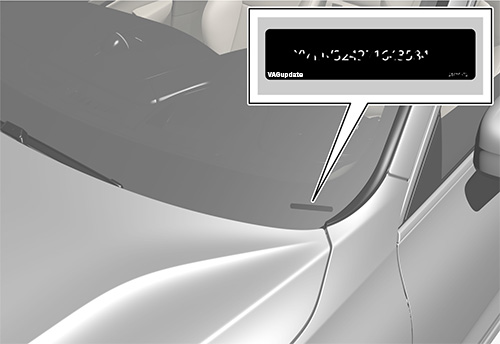
You can find it on bottom right corner for your car's front glass or in registration decuments.
This is required to register your update to the dealer network.
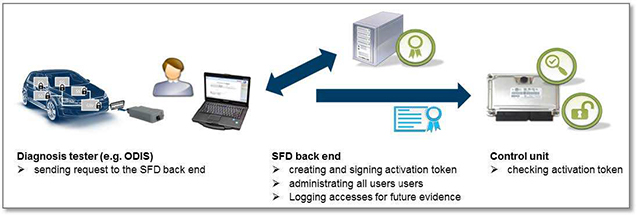
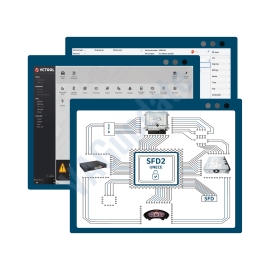
This product will provide you SFD token to unlock adaptation and codings for new MQB platform cars.
Requirements:
ODIS Service 6.0 or ODIS Engineering 12 or above softwares.
VCP (vagcanpro) version 8.7.4 or above
Unlock request structure (HEX) which can be get during SFD unlock request.
Spesifications:
Each activation token is specific to the control unit and usable only one time!!
When using Guided Fault Finding SFD-protected control units are automatically locked at the end of the diagnostic session. Otherwise they are also automatically locked again 90 minutes after activation.
If you need immediate assistance please contact our whatsapp line at +1(201) 479-95-96
The aim of SFD
Product analyses in the VW Group have shown that there is an increased requirement for protection of data in vehicles. This is also the case for Vehicle Diagnostic Protection. The previous procedure (activation of security access by way of a 5-digit login code) no longer conforms to the state of the art. As of 2020 – beginning with the market entry of the MQB37W (Golf 8) – there will be a cross-brand introduction of the SFD procedure in order to provide Vehicle Diagnostic Protection.
SFD will be introduced in two project stages:
Stage 1 comprises access protection of protected diagnostic objects in control units and the verifiability of this access on an individual level. The protection requirement will be defined for specific control units and diagnostic objects. The protection requirement is limited to specific writing services (codings, adjustments, parametrisations) and routines. Normal reading services (e.g. readout of control unit event memories) will not be SFD-protected. The functions of data string downloading with boot loader data strings, flashing and/or update programming as well as flash data security are also not affected by SFD.
Stage 2 includes, as a supplement to stage 1, tamper protection of diagnostic contents upon integration of the diagnostic contents by end-to-end safeguarding of diagnostic data between VAG IT back end systems and control units. In order to be able to log access to diagnostic contents requiring protection in future, the IT security organisation requires strong user authentication to be enforced. It is therefore necessary to use two-factor authentication, which can be implemented, for example, by using
PKI-cards
SecurID-cards
Applications that generate one-time passwords (e.g. Google Authenticator or Microsoft Authenticator).
In a first transition phase, however, weak authentication by way of a username and password will initially be introduced when using the Dealer Portal. The transition to strong authentication by means of the Group Retail Portal will be developed in parallel.
The SFD process requires the vehicle diagnostic tester to have an online connection.
For detailed information you may download Offboad Diagnostic Information System Service Unlock procedure for SFD documentation here: DOWNLOAD DOCUMENTATION
If you install unofficial firmwares from unknown sources the answer is Yes. But if you buy from us the answer is no. Because we also register the update to dealer network. Firmware updates we provide are official updates and installing them has no effect to your warranty. For unofficial firmware updates you may read this blog post: Unofficial Firmware Updates May Void Your Warranty!
For Audi MIB3: Tap and hold top right corner of your screen with two fingers to go to red engineering menu, navigate to version information menu there.
For others use the shortcuts on keyboard as described here: https://vagupdate.com/blog/key-combinations-and-shortcuts-to-check-firmware-version
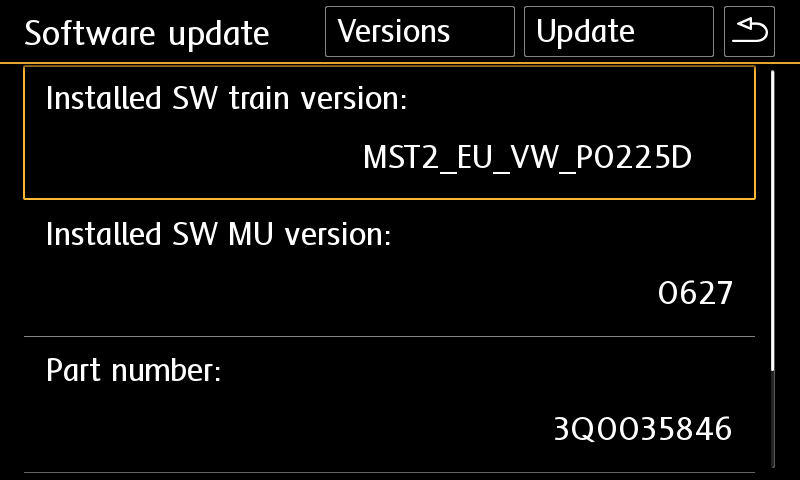
For VW MIB2 Press and hold menu button. Select "software update". You will see a screen below:
Unfortunately there is not any officially published changelog by manufacturers but according to our previous experience we can say that it has bug fixes, support for new bluetooth channels which comes with new smart phones, better voice command recognition, faster navigation route calculation, translate error fixes, faster smartphone connection for carplay/android auto and theme bug fixes. You can experience result when you use it.
If you ordered firmware update, You need to provide "Installed SW Train Version" and "Installed SW MU Version" informations to us.
To find it, press and hold menu button and select software update. You will see it at first row as you see in screenshot below.
You may send us this screenshot via email (orders[at]vagupdate.com).
Do not send images over whatsapp because it will not be recorded under your order and also images are unable to be downloaded after some time passed.
We are unable to send you download URL without checking this info.
You will get download URL within 1-3 hours after providing the required information.
If your MIB or MMI has a spesific version which is not very common it may take up to 24 hours to get your software from dealer network and upload for your download.
We save firmware update process to dealer network by your VIN to keep your warranty valid. Also the firmwares are dedicated to VIN number to keep all functions and setting same after the update. It is valid only for that VIN. So we need your VIN to prepare firmware for your infotainment system.
Yes you can do it on yourself. It is easy process.
Requirements:
Class 10 Exfat formatted empty SD card or USB Flash Memory. (We recommend SD card for MIB2 devices. Type-C USB flash memory is required for updating MIB3 devices)
A computer to download and extract files into SD card or USB flash memory.
Enough charged car battery. (Installation takes 20-40 minutes depending on your SD card's or USB flash memory's read speed)
Manufacturer does not recommend running engine during update process but if it is certain that your car's battery will get empty, you may run engine during update process. (less risky)
Download firmware and extract it to desktop of your computer using winrar app.
Copy all contents in that folder into SD card's or USB flash memory's root folder. If it is MIB2, metainfo2.txt and other folders must be in root directory, not in a folder or archive. If it is MIB3 data and meta folders must be in root directory)
Insert SD card into infotainment system's SD1 slot or USB flash memory to car's USB port. (Do not use "only charge" ports)
For MIB2 devices, press and hold menu button. Select system update. For Audi MIB3 tap and hold top right corner of screen with two fingers. For MIB3 and other devices use shortcut shown here: https://vagupdate.com/blog/key-combinations-and-shortcuts-to-check-firmware-version
Go to system update menu, tap on start, show data source (usb or sd card) and update will be started.
Once completed it will ask you to connect diagnose device. Just tap on cancel button. System will be restarted and ready to use with the new firmware.
If you get any error or problem please let us know for assistance.
Ask us on Live Chat or send us a message here. You need to provide "Installed SW Train Version" and "Installed SW MU Version" informations to us.
To find it, use this tutorial: https://vagupdate.com/blog/key-combinations-and-shortcuts-to-check-firmware-version You will see it at first row as you see in screenshot below:
No. This is just an update. It will not activate any function. But will provide stability while using those functions. If you need function activation check this category: Function Activations