Red Engineering Menu Activation for Audi MMI MHI3 & MPR3

Red Engineering Menu Activation for Audi MMI MHI3 & MPR3

$149.00 $499.00 -70%
Inc VAT $149.00
Brand: Audi
Product Code: AUDIMHI3RED
Sends From: USA, Netherlands, Turkiye
Availability: In Stock
Viewed 7610 times

Available Options

Tags:
audi mmi mh2p mhi3 unlock activation red menu red engineering menu

Product Description

Red Engineering Menu Activation for Audi MMI MHI3 & MPR3

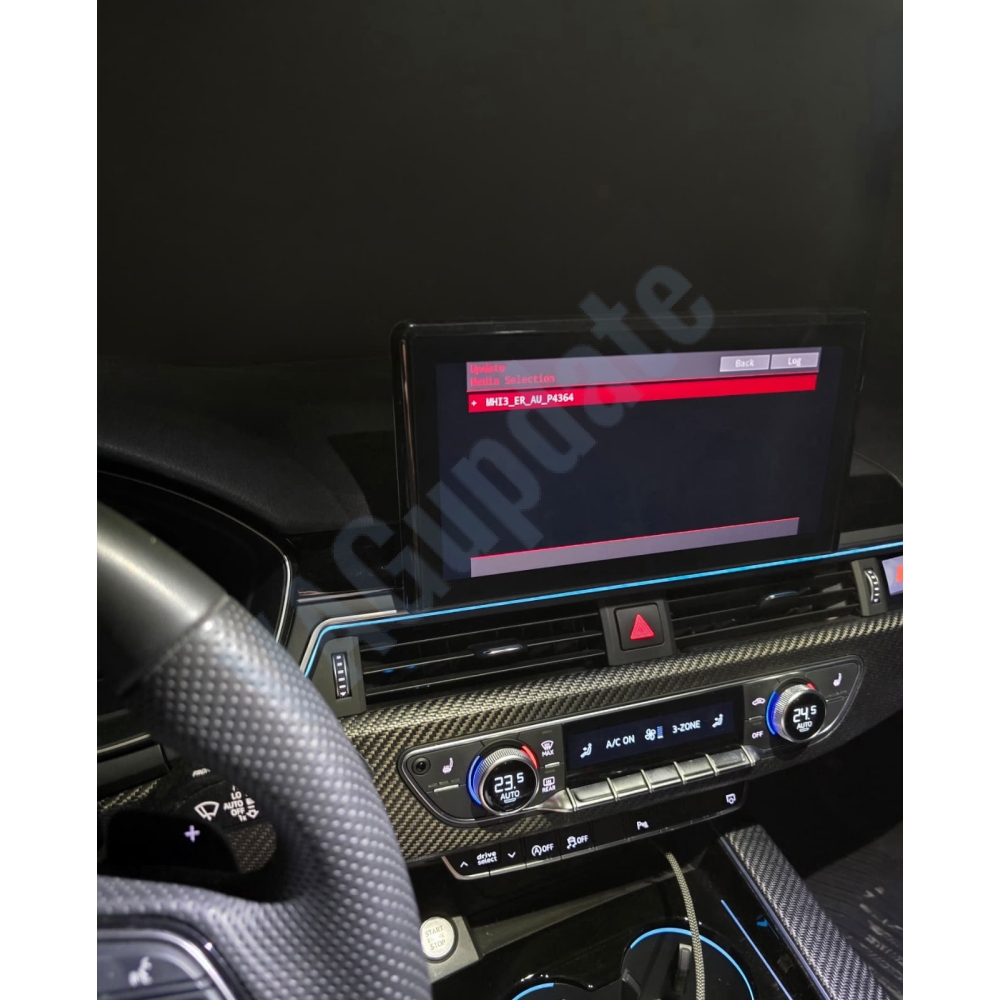
Restore access to the Red Engineering Menu on compatible Audi MHI3 and MPR3 infotainment systems through a remote activation session.

What does this service do?

On some vehicles, access to the Red Engineering Menu is restricted after updating the MMI from software version 4014 to a 43xx or later version. This service activates menu access on a compatible unit without changing the vehicle’s infotainment hardware.

The activation is provided as a lifetime licence for the supported unit. It is designed to remain available after compatible future firmware updates; if an update changes this behaviour, contact us for an assessment.

Compatibility

All regions are supported, provided your installed MMI software version begins with MHI3 or MPR3 and the unit is compatible with this procedure. You can find the version under Settings → General → Version Information. If you are unsure, send us a photo of the version information before ordering.

Requirements

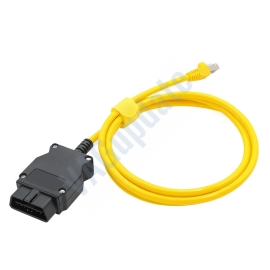
  • ENET OBD-to-Ethernet diagnostic cable
  • Computer or laptop with AnyDesk installed
  • Stable internet connection with at least 50 Mbps upload speed

The remote procedure normally takes approximately 40 minutes, depending on the vehicle and connection conditions. After placing your order, contact us to schedule your installation session.

Before ordering: Confirm that your unit is MHI3 or MPR3. This service enables access to the engineering menu; it does not include a firmware update or activation of unrelated MMI functions.
  • 0%
  • 0%
  • 0%
  • 0%
  • 0%

Reviews Over Red Engineering Menu Activation for Audi MMI MHI3 & MPR3

Total Reviews (0)
click here write review to add review for this product.


Firmware

If you install unofficial firmwares from unknown sources the answer is Yes. But if you buy from us the answer is no. Because we also register the update to dealer network. Firmware updates we provide are official updates and installing them has no effect to your warranty. For unofficial firmware updates you may read this blog post: Unofficial Firmware Updates May Void Your Warranty!

Check Installed SW Train Version:

MST2_EU_VW: Delphi (MIB2 Std)
MST2_EU_VW_PQ: Technisat/Preh (MIB2 Std)
MST2_EU_VW_ZR: Technisat/Preh (MIB2 Std)
MHI2_ER_VWG11: Harman (MIB2 High)
MHI2_ER_VWG13: Harman (MIB2.5 High)
MHI3: MIB3 Alpine
MOI3: MIB3 LG or Preh
MENT: MIB2 Entry
MH2p: pre MIB3
MHI2Q: MIB2 High
MHIG: MIB1 High
MHS2: MIB2 Delphi
MPR3: MIB3
MS2P: MIB2 Std
MSTD: MIB1 Std
MEN2: MIB2
MEN3: MIB3

To find your Installed SW Train Version,

For Audi MIB3:
Tap and hold top right corner of your screen with two fingers to go to red engineering menu, navigate to version information menu there.

For others use the shortcuts on keyboard as described here: https://vagupdate.com/blog/key-combinations-and-shortcuts-to-check-firmware-version

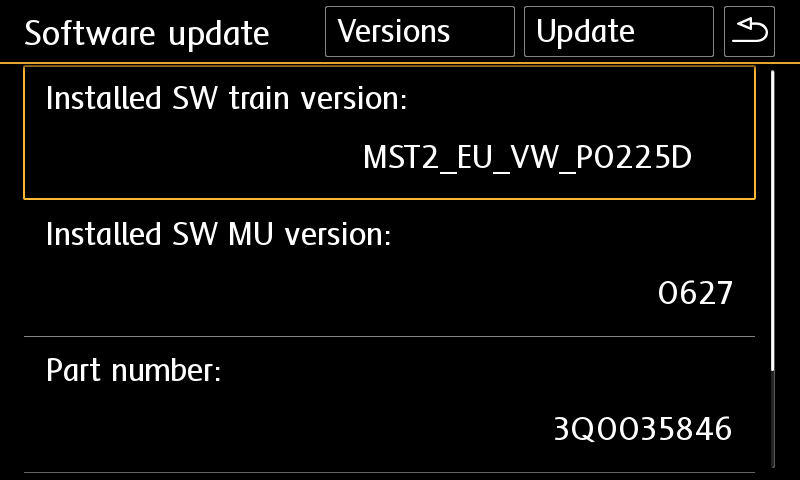
For VW MIB2 Press and hold menu button. Select "software update". You will see a screen below:

Unfortunately there is not any officially published changelog by manufacturers but according to our previous experience we can say that it has bug fixes, support for new bluetooth channels which comes with new smart phones, better voice command recognition, faster navigation route calculation, translate error fixes, faster smartphone connection for carplay/android auto and theme bug fixes. You can experience result when you use it.
If you ordered firmware update, You need to provide "Installed SW Train Version" and "Installed SW MU Version" informations to us.
To find it, press and hold menu button and select software update. You will see it at first row as you see in screenshot below.
You may send us this screenshot via email (orders[at]vagupdate.com).
Do not send images over whatsapp because it will not be recorded under your order and also images are unable to be downloaded after some time passed.
 
We are unable to send you download URL without checking this info.
You will get download URL within 1-3 hours after providing the required information.
 
If your MIB or MMI has a spesific version which is not very common it may take up to 24 hours to get your software from dealer network and upload for your download.
 

We save firmware update process to dealer network by your VIN to keep your warranty valid. Also the firmwares are dedicated to VIN number to keep all functions and setting same after the update. It is valid only for that VIN. So we need your VIN to prepare firmware for your infotainment system.

Yes you can do it on yourself. It is easy process.

Requirements:

  • Class 10 Exfat formatted empty SD card or USB Flash Memory. (We recommend SD card for MIB2 devices. Type-C USB flash memory is required for updating MIB3 devices) 
  • A computer to download and extract files into SD card or USB flash memory.
  • Enough charged car battery. (Installation takes 20-40 minutes depending on your SD card's or USB flash memory's read speed)
  • Manufacturer does not recommend running engine during update process but if it is certain that your car's battery will get empty, you may run engine during update process. (less risky)
  • Winrar Software: https://www.rarlab.com/download.htm

Installation:

  • Download firmware and extract it to desktop of your computer using winrar app.
  • Copy all contents in that folder into SD card's or USB flash memory's root folder.
    If it is MIB2, metainfo2.txt and other folders must be in root directory, not in a folder or archive. If it is MIB3 data and meta folders must be in root directory)
  • Insert SD card into infotainment system's SD1 slot or USB flash memory to car's USB port. (Do not use "only charge" ports)
  • For MIB2 devices, press and hold menu button. Select system update.
    For Audi MIB3 tap and hold top right corner of screen with two fingers.
    For MIB3 and other devices use shortcut shown here: https://vagupdate.com/blog/key-combinations-and-shortcuts-to-check-firmware-version
  • Go to system update menu, tap on start, show data source (usb or sd card) and update will be started.
  • Once completed it will ask you to connect diagnose device. Just tap on cancel button. System will be restarted and ready to use with the new firmware.

If you get any error or problem please let us know for assistance.

Ask us on Live Chat or send us a message here. You need to provide "Installed SW Train Version" and "Installed SW MU Version" informations to us.

To find it, use this tutorial: https://vagupdate.com/blog/key-combinations-and-shortcuts-to-check-firmware-version
You will see it at first row as you see in screenshot below:

No. You do not need any diagnostic tool or any software. Just an empty FAT32 formatted SD card or USB flash memory (for MIB3) and a computer.

That's all you need to update your infotainment system.

No. This is just an update. It will not activate any function. But will provide stability while using those functions. If you need function activation check this category: Function Activations

No, you cannot. Firmwares are dedicated to VIN number to keep all functions and setting same after the update. It is valid only for the purchased VIN.

If you install to another car, you may lose functions or completely brick the infotainment unit. And this is no covered by your warranty.

Yes PayPal and all major credit cards are accepted.

No, you can't. MIB is hardware. To make an upgrade from MIB1 to MIB2 or MIB2 to MIB3. You need to change your hardware.

You can perform firmware updates only for your existing hardware. For example, you cannot install MIB3 firmware on MIB2 device.