Porche PCM Firmware Update

Porche PCM Firmware Update

$200.00
Inc VAT $200.00
Brand: Porche
Product Code: LAMBOFW01
Sends From: USA, Netherlands, Turkiye
Availability: In Stock
Viewed 69 times

Available Options

Tags:
Porsche PCM firmware Porsche PCM update Porsche firmware update Porsche PCM software Porsche Communication Management PCM software update Porsche infotainment update Porsche navigation update Porsche software update Porsche PCM firmware update

Product Description

Porsche PCM Firmware Update
Full Porsche Communication Management system software update selected according to your VIN and current software version

This product contains the full system firmware software for compatible Porsche Communication Management (PCM) systems. You can upgrade your PCM to the latest compatible software version to benefit from manufacturer improvements, bug fixes, stability updates and system optimizations.

Please contact us if you have any compatibility questions. Software is available for supported regions including the United Kingdom, European Union, Turkey and other applicable markets.

Digital Product
Nothing physical will be delivered. You will receive a download URL after your order has been processed.
How to Check Your PCM Software Version

To check if a newer software version is available for your Porsche PCM system:

Open the PCM Settings / System Information / Software Information menu and send us the complete software version information displayed on the screen. Menu names may vary depending on the Porsche model, model year and PCM generation.

THE SOFTWARE IS SELECTED ACCORDING TO YOUR VEHICLE'S VIN, PCM HARDWARE AND CURRENT SOFTWARE VERSION. YOU MUST PROVIDE YOUR VIN NUMBER AND CURRENT PCM SOFTWARE VERSION WHEN ORDERING.
Improvements That May Be Included in the New Version
  • Apple CarPlay and Android Auto connection and compatibility problems may be fixed or improved where supported by the PCM system.
  • Bluetooth pairing, connection and disconnection problems may be improved.
  • Radio reception, station management and radio functionality may be improved.
  • Navigation performance, GPS operation and route calculation speed may be improved.
  • PCM freezing, restarting, lagging and stability problems may be corrected.
  • PCM startup and boot performance may be improved.
  • Translation, menu and user interface errors may be corrected.
  • Touchscreen, display and control response times may be improved.
  • USB and external media playback stability may be improved.
  • Known PCM system errors and software bugs may be fixed.
  • Audio system communication, performance and output stability may be optimized.
  • General PCM performance, stability and vehicle compatibility may be improved.
Requirements
  • A compatible Porsche Communication Management (PCM) system.
  • An empty SD card or USB flash drive formatted with the required file system. The required storage media and capacity depend on the PCM generation. Some newer systems may require USB Type-C media.
  • A computer to download the software package, extract the archive and copy the required files to the SD card or USB flash drive.
  • A sufficiently charged vehicle battery. We strongly recommend using a suitable battery charger or regulated power supply during the update process. Installation time varies depending on the PCM generation, software package and storage media speed.
Installation
1. Download the PCM software package provided after your order has been processed.
2. Extract the downloaded archive to your computer using WinRAR, 7-Zip or similar archive software.
3. Locate the main folder containing the Porsche PCM update files. The exact file and folder structure varies depending on the PCM generation and firmware package.
4. Copy all required files and folders directly to the root directory of the SD card or USB flash drive unless different instructions are supplied with your firmware package. The update files must not remain inside an additional folder or compressed archive.
5. Insert the SD card into the appropriate SD card slot or connect the USB flash drive to a data-capable USB port in the vehicle. Do not use charging-only USB ports.
6. Open the PCM software update, engineering or service menu. The method used to access the update function varies depending on the Porsche model, model year and PCM generation.
7. Select the appropriate Software Update function and choose the SD card or USB flash drive as the update source when required.
8. Follow the instructions displayed on the PCM screen and start the firmware update.
9. Do not switch off the ignition, remove the SD card or USB flash drive, disconnect the battery charger or interrupt the vehicle's power supply while the update is in progress.
10. Once the installation has been completed, confirm the completion message if required. The PCM system may restart several times during or after the update.
11. After the final restart, check the System / Software Information menu to confirm that the new PCM software version has been installed successfully.
Important
Firmware packages are selected specifically according to the vehicle's VIN, Porsche PCM hardware and currently installed software version. Installing incompatible software may cause loss of functions, communication errors or damage to the PCM system.

If the VIN or PCM software version provided with your order is incorrect, please contact us before starting the update.
Need help with compatibility or installation?
Please contact us before performing the update if you have any questions.
  • 0%
  • 0%
  • 0%
  • 0%
  • 0%

Reviews Over Porche PCM Firmware Update

Total Reviews (0)
click here write review to add review for this product.


Firmware

If you install unofficial firmwares from unknown sources the answer is Yes. But if you buy from us the answer is no. Because we also register the update to dealer network. Firmware updates we provide are official updates and installing them has no effect to your warranty. For unofficial firmware updates you may read this blog post: Unofficial Firmware Updates May Void Your Warranty!

Check Installed SW Train Version:

MST2_EU_VW: Delphi (MIB2 Std)
MST2_EU_VW_PQ: Technisat/Preh (MIB2 Std)
MST2_EU_VW_ZR: Technisat/Preh (MIB2 Std)
MHI2_ER_VWG11: Harman (MIB2 High)
MHI2_ER_VWG13: Harman (MIB2.5 High)
MHI3: MIB3 Alpine
MOI3: MIB3 LG or Preh
MENT: MIB2 Entry
MH2p: pre MIB3
MHI2Q: MIB2 High
MHIG: MIB1 High
MHS2: MIB2 Delphi
MPR3: MIB3
MS2P: MIB2 Std
MSTD: MIB1 Std
MEN2: MIB2
MEN3: MIB3

To find your Installed SW Train Version,

For Audi MIB3:
Tap and hold top right corner of your screen with two fingers to go to red engineering menu, navigate to version information menu there.

For others use the shortcuts on keyboard as described here: https://vagupdate.com/blog/key-combinations-and-shortcuts-to-check-firmware-version

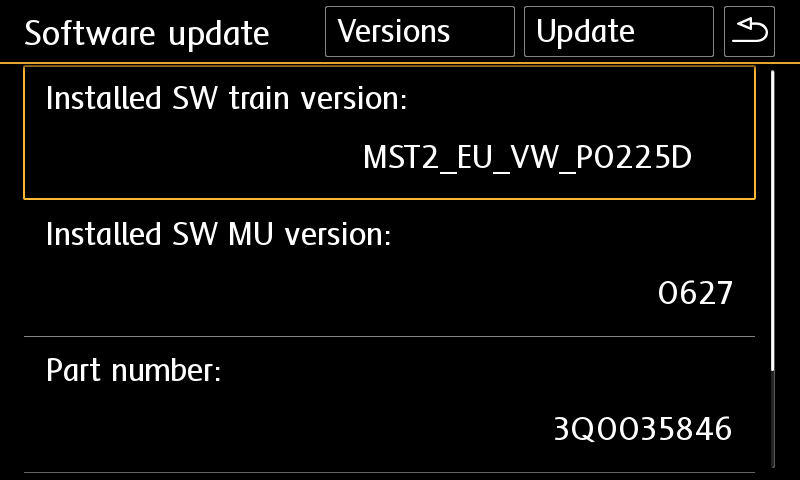
For VW MIB2 Press and hold menu button. Select "software update". You will see a screen below:

Unfortunately there is not any officially published changelog by manufacturers but according to our previous experience we can say that it has bug fixes, support for new bluetooth channels which comes with new smart phones, better voice command recognition, faster navigation route calculation, translate error fixes, faster smartphone connection for carplay/android auto and theme bug fixes. You can experience result when you use it.
If you ordered firmware update, You need to provide "Installed SW Train Version" and "Installed SW MU Version" informations to us.
To find it, press and hold menu button and select software update. You will see it at first row as you see in screenshot below.
You may send us this screenshot via email (orders[at]vagupdate.com).
Do not send images over whatsapp because it will not be recorded under your order and also images are unable to be downloaded after some time passed.
 
We are unable to send you download URL without checking this info.
You will get download URL within 1-3 hours after providing the required information.
 
If your MIB or MMI has a spesific version which is not very common it may take up to 24 hours to get your software from dealer network and upload for your download.
 

We save firmware update process to dealer network by your VIN to keep your warranty valid. Also the firmwares are dedicated to VIN number to keep all functions and setting same after the update. It is valid only for that VIN. So we need your VIN to prepare firmware for your infotainment system.

Yes you can do it on yourself. It is easy process.

Requirements:

  • Class 10 Exfat formatted empty SD card or USB Flash Memory. (We recommend SD card for MIB2 devices. Type-C USB flash memory is required for updating MIB3 devices) 
  • A computer to download and extract files into SD card or USB flash memory.
  • Enough charged car battery. (Installation takes 20-40 minutes depending on your SD card's or USB flash memory's read speed)
  • Manufacturer does not recommend running engine during update process but if it is certain that your car's battery will get empty, you may run engine during update process. (less risky)
  • Winrar Software: https://www.rarlab.com/download.htm

Installation:

  • Download firmware and extract it to desktop of your computer using winrar app.
  • Copy all contents in that folder into SD card's or USB flash memory's root folder.
    If it is MIB2, metainfo2.txt and other folders must be in root directory, not in a folder or archive. If it is MIB3 data and meta folders must be in root directory)
  • Insert SD card into infotainment system's SD1 slot or USB flash memory to car's USB port. (Do not use "only charge" ports)
  • For MIB2 devices, press and hold menu button. Select system update.
    For Audi MIB3 tap and hold top right corner of screen with two fingers.
    For MIB3 and other devices use shortcut shown here: https://vagupdate.com/blog/key-combinations-and-shortcuts-to-check-firmware-version
  • Go to system update menu, tap on start, show data source (usb or sd card) and update will be started.
  • Once completed it will ask you to connect diagnose device. Just tap on cancel button. System will be restarted and ready to use with the new firmware.

If you get any error or problem please let us know for assistance.

Ask us on Live Chat or send us a message here. You need to provide "Installed SW Train Version" and "Installed SW MU Version" informations to us.

To find it, use this tutorial: https://vagupdate.com/blog/key-combinations-and-shortcuts-to-check-firmware-version
You will see it at first row as you see in screenshot below:

No. You do not need any diagnostic tool or any software. Just an empty FAT32 formatted SD card or USB flash memory (for MIB3) and a computer.

That's all you need to update your infotainment system.

No. This is just an update. It will not activate any function. But will provide stability while using those functions. If you need function activation check this category: Function Activations

No, you cannot. Firmwares are dedicated to VIN number to keep all functions and setting same after the update. It is valid only for the purchased VIN.

If you install to another car, you may lose functions or completely brick the infotainment unit. And this is no covered by your warranty.

Yes PayPal and all major credit cards are accepted.

No, you can't. MIB is hardware. To make an upgrade from MIB1 to MIB2 or MIB2 to MIB3. You need to change your hardware.

You can perform firmware updates only for your existing hardware. For example, you cannot install MIB3 firmware on MIB2 device.